How to use Casora
How to sort bank activity and close the month
Last reviewed
Part of Bank connection →Part of Bookkeeping and reports →
Short answer: every transaction from your bank waits in Transactions → To review until you say what it was. Pick a category and choose Save, and it goes into your books. At month end, check each account against its statement and close the month. Most treasurers spend five to ten minutes a month here, and less once Casora has learned your regular payees.
Before you start
- Connect your bank and set up your books. See How to connect your association's bank account.
- Go to Transactions. To review shows how many are waiting.
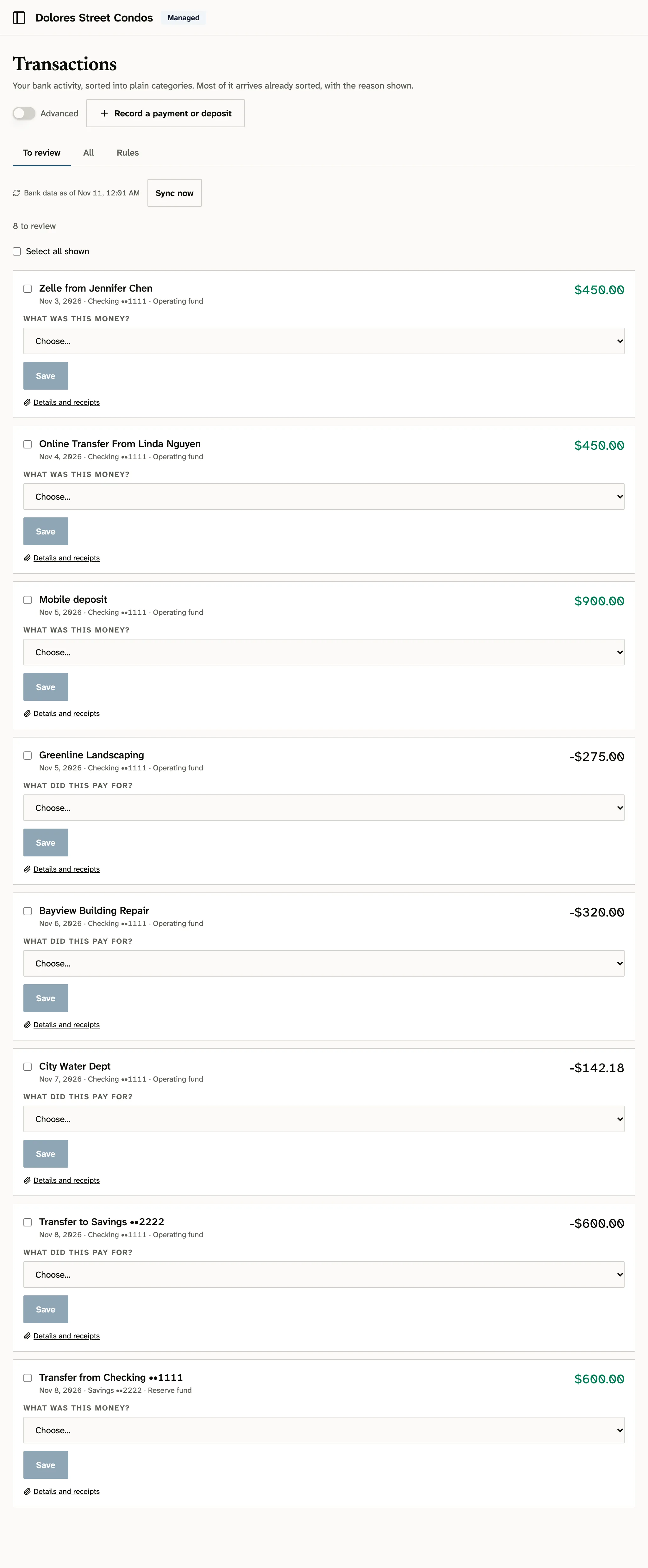
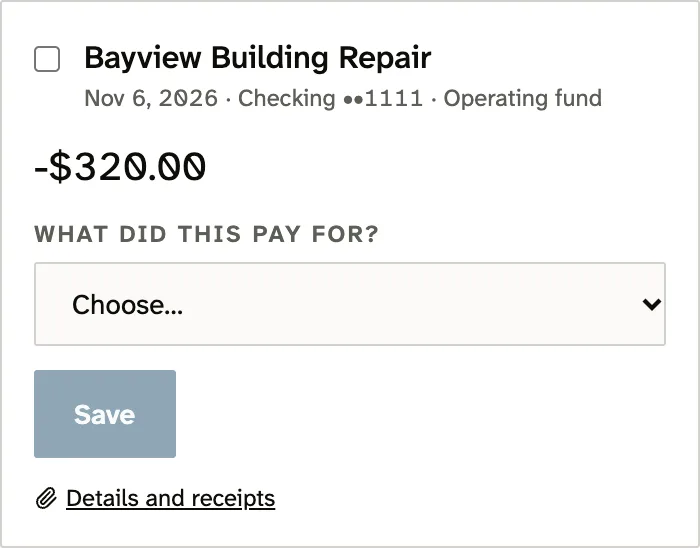
Each card shows the date, the account, the fund, the bank's own description and the amount. Money in is green. Choose Sync now to fetch anything the bank has sent since the last sync.
Record a dues payment
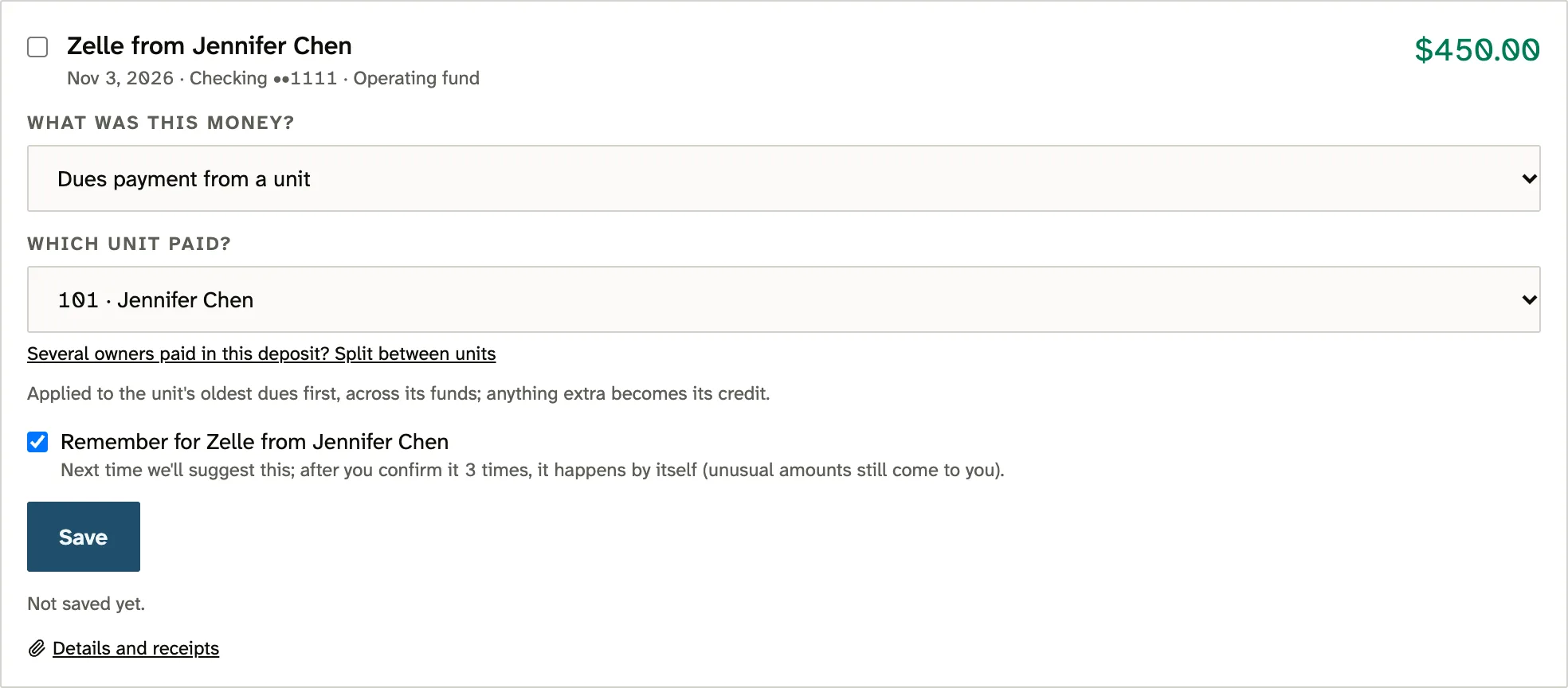
- Under What was this money?, choose Dues payment from a unit.
- Under Which unit paid?, pick the unit. Units show their owner's name, like "101 · Jennifer Chen".
- Choose Save.
The payment goes to the unit's oldest dues first, across its funds. Anything extra becomes a credit on the unit. The unit's balance drops on Collections.
Split a deposit between units
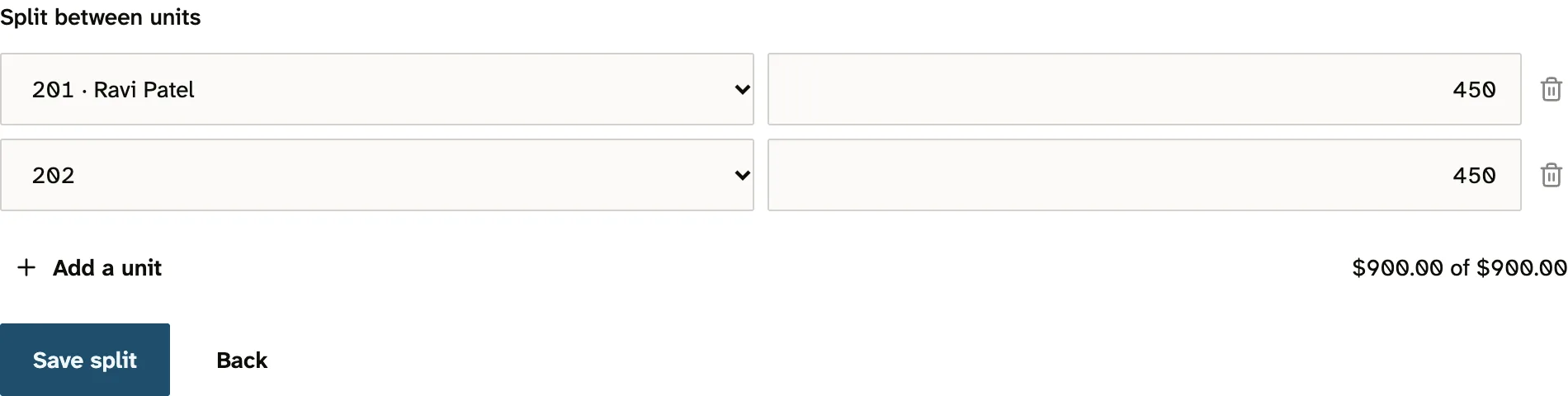
One deposit covering several owners, like a stack of checks? Choose Dues payment from a unit, then Several owners paid in this deposit? Split between units. Pick each unit and its share, add more with Add a unit, and choose Save split when the total matches.
Record a bill you paid
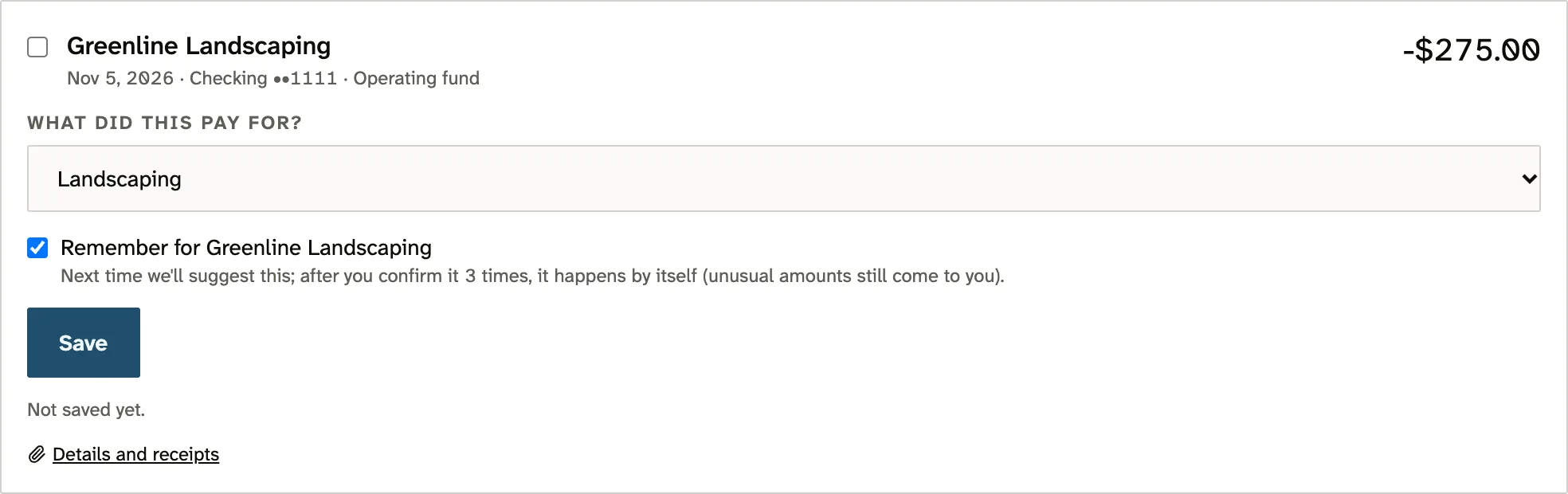
For money out, What did this pay for? lists plain categories: Insurance, Repairs and maintenance, Landscaping, Water and sewer, and more. Pick one and choose Save.
On a phone, the cards stack, so you can clear the list from anywhere.
Record a transfer between accounts
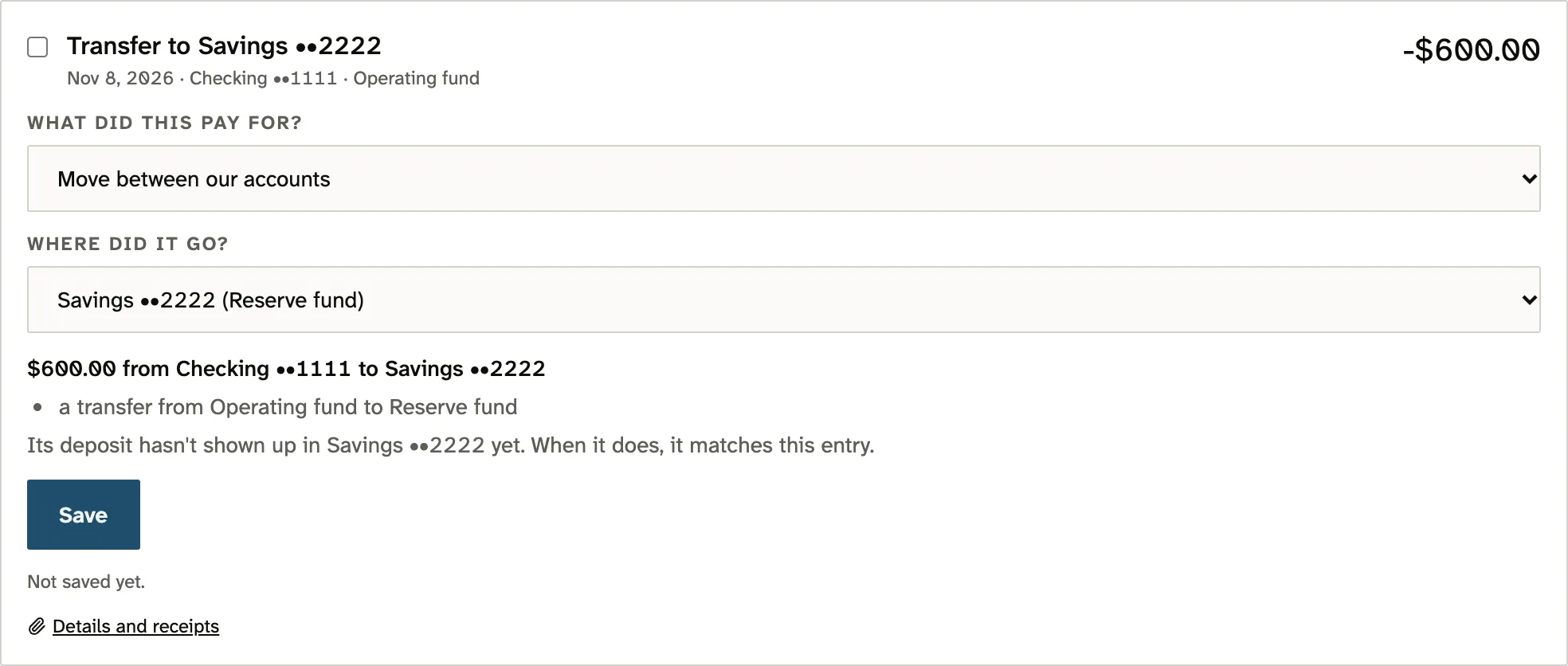
For the monthly move from checking to savings, choose Move between our accounts. Under Where did it go?, pick the other account. Casora shows which fund the money moved from and to. When the matching deposit arrives in the other account, it matches this entry.
Attach a receipt
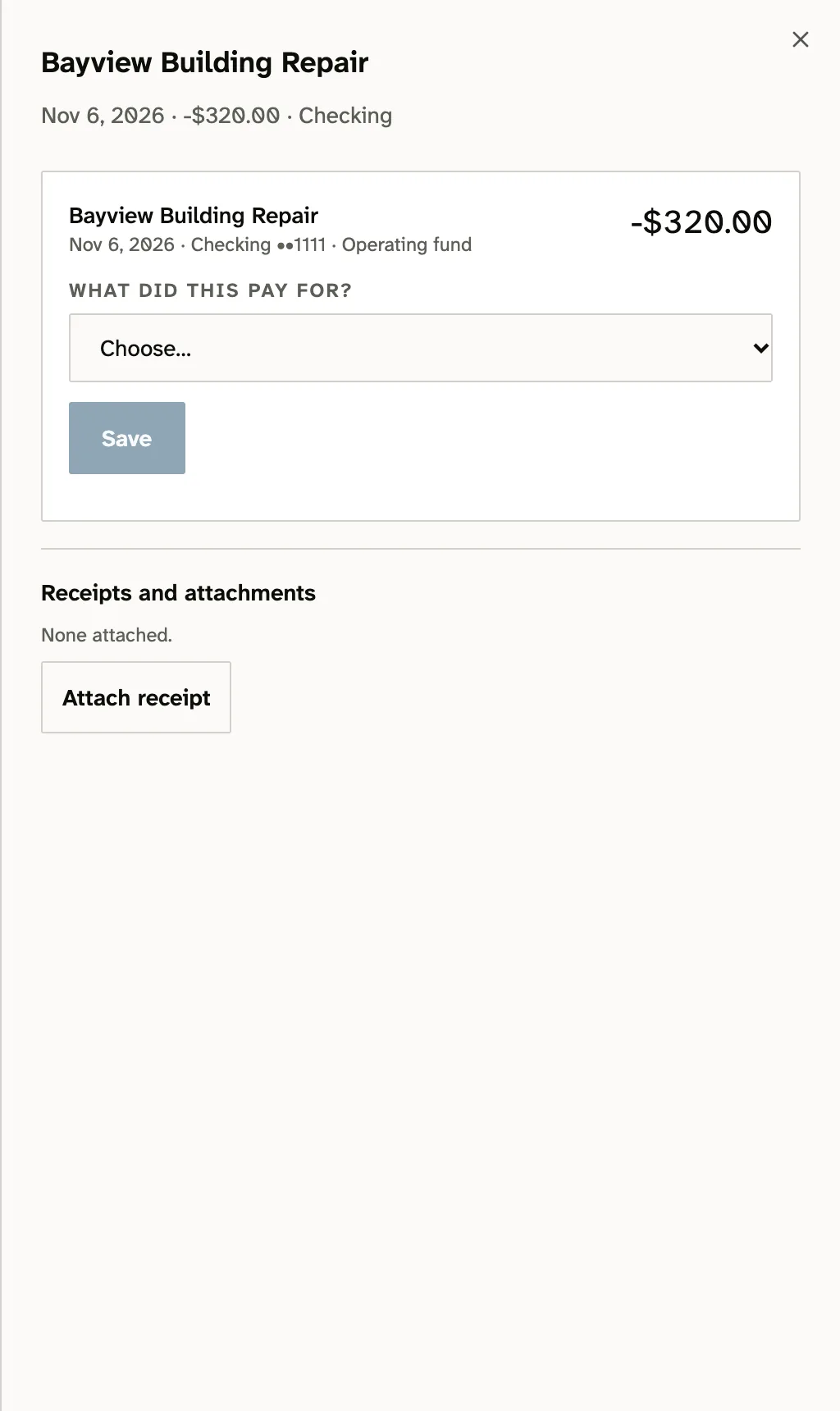
Choose Details and receipts on any transaction, then Attach receipt. It's kept with the transaction for audits and owner questions.
Let Casora learn your regulars
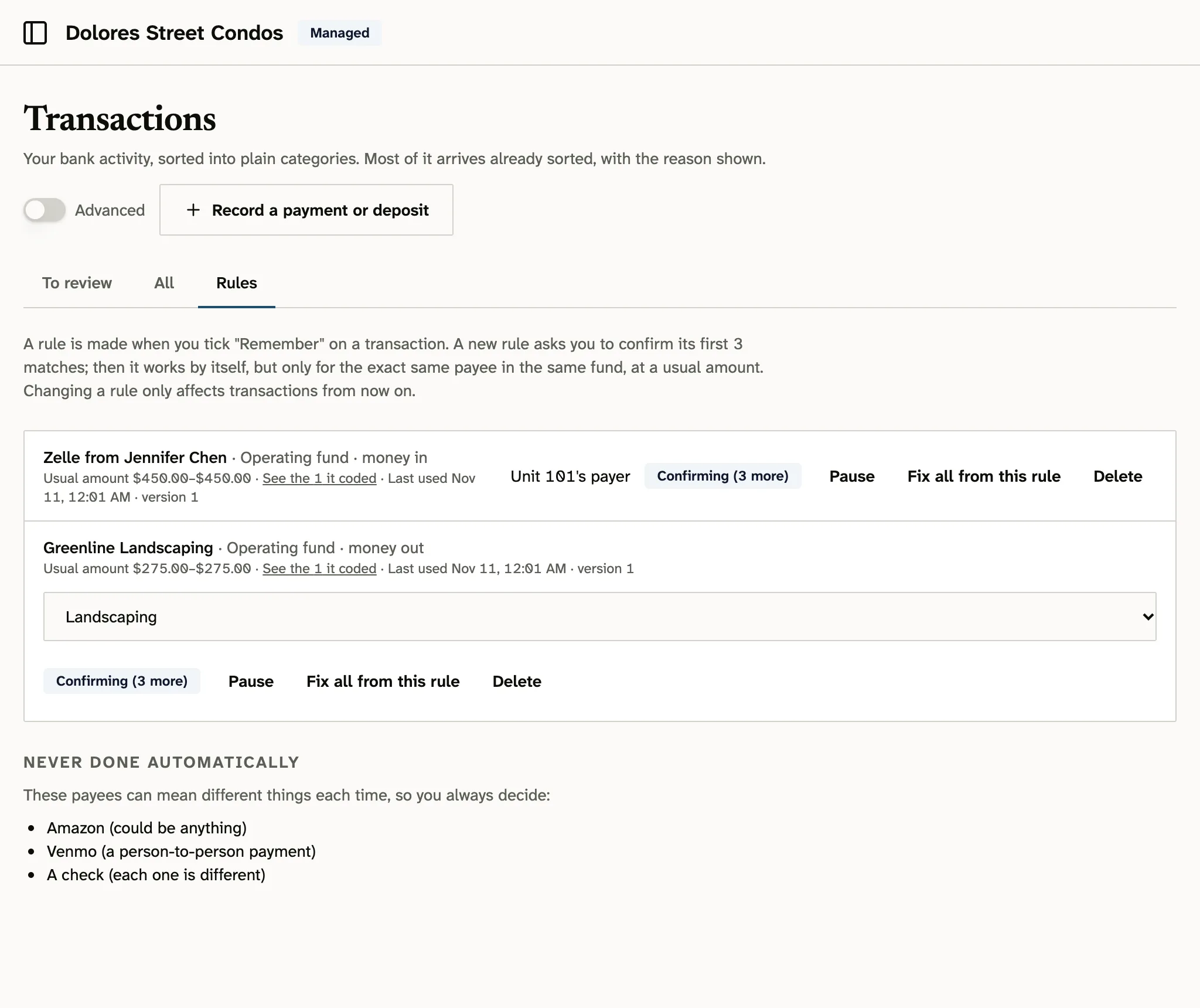
Tick Remember for the payee before you save. Next time that payee appears, Casora suggests the same category. After you confirm it 3 times, it happens by itself, with the reason shown. Unusual amounts still come to you.
Your rules are under Transactions → Rules, where you can Pause or Delete one. Some payees are never done automatically because they can mean something different each time, such as checks, Amazon and Venmo.
See everything you've sorted
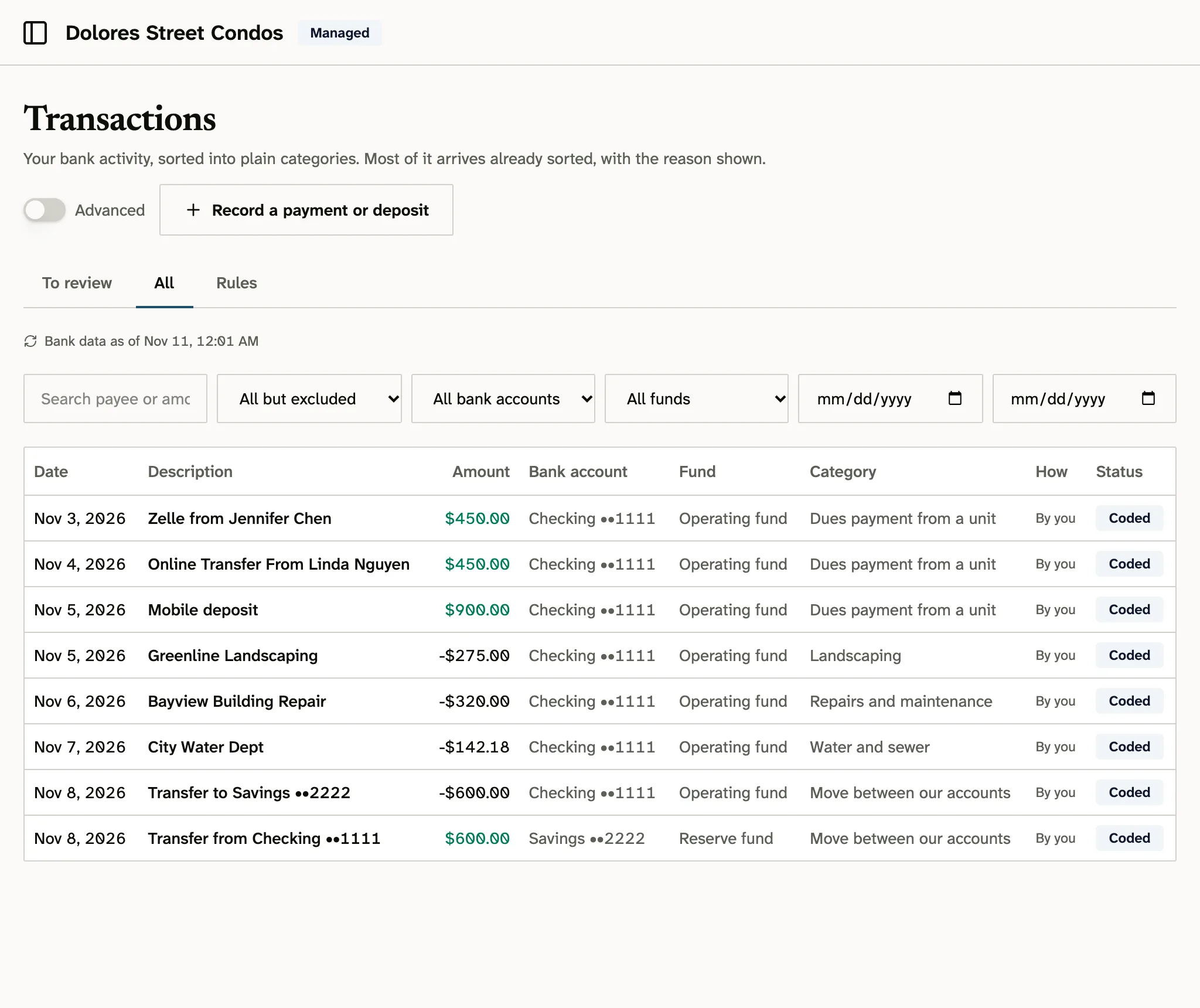
The All tab lists every transaction with its category, How it was sorted (by you, or by a rule) and its status. Filter by status, account or fund.
Close the month
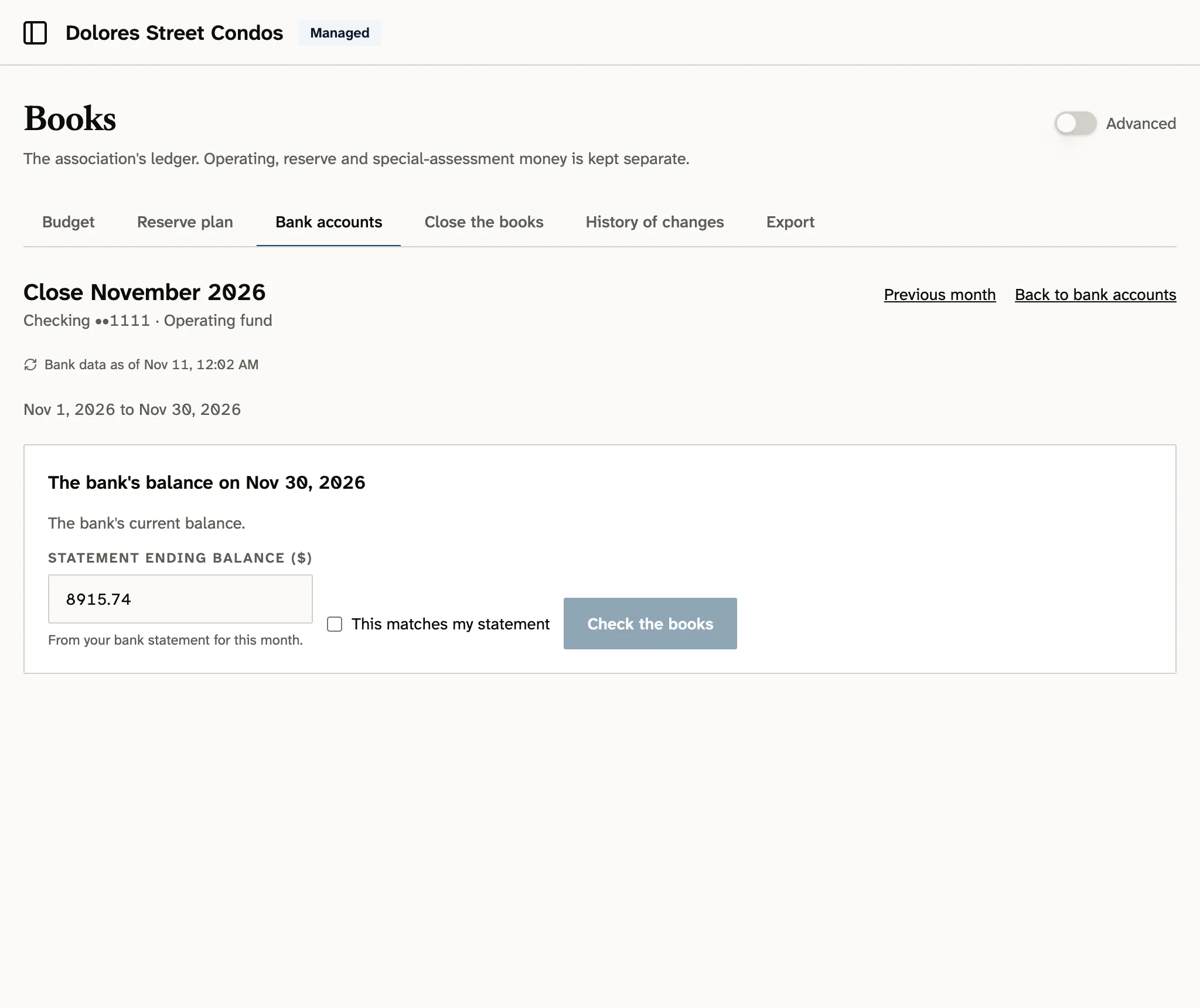
When the month's statement arrives, go to Books → Bank accounts and choose Close a month under the account.
- Type the Statement ending balance from your bank statement.
- Choose Check the books.
If the books and the bank agree, Casora says so. If they don't yet, it says by how much, and See what doesn't match shows the transactions to look at. Anything Casora sorted by itself this month is listed for you to look over. Then choose Close November 2026. Do the same for each account.
A closed month can't be changed by accident. If you need to fix something in it, reopen it first.
What happens next
Each month: sort what's waiting, then close the month when the statement arrives. Owner payments you record show up on Collections. See How to set up dues and send your first bill.
Frequently asked questions
I saved the wrong category.
Open the transaction from the All tab and choose Change category. Pick the right one and choose Save change. Casora takes the old category out of the books and records the new one, both on the transaction's date. Closed months can't be changed this way.
A transaction isn't showing yet.
Banks can take a day or two to post. Choose Sync now to fetch anything the bank has sent.
Why is a payment marked "before your start date"?
It's dated before your books start, so it stays out of your books. See How to set up your books from your starting balances.
Last reviewed November 11, 2026. General information, not legal or tax advice.
See where your association stands.
Set up Casora for your building today.